Linking the Handler and Reading an Excel file
In this section, we will use the defined Command Java class and will connect our application to external Excel files.
|
Starting Point
This section builds on the content from Building the Custom Data Command Class. |
1. Linking the Handler (Phase 1: Skeleton Test)
Before parsing the Excel file, let’s verify our Command skeleton is hooked up correctly to our UI button.
Open your Handler class. Replace the placeholder action (that printed out the file path) with the following code to execute the command with an empty list.
OpenpitScenario currentScenario = (OpenpitScenario)appData.getScenario();

ImportCustomDataCommand command = new ImportCustomDataCommand(currentScenario, redrawRestrictionManager);
command.importCustomData(List.of()); // Passing an empty list for now

CommandsManager.getEditingDomain().getCommandStack().execute(command);

MessageBoxFactory.createMessageBox(shell, SWT.OK, "Success", "Data import command executed.");|
Eclipse Quick Fix for Imports
If |
✅ Full Code up to this point
import java.util.List;
import com.amalgamasimulation.desktop.binding.RedrawRestrictionManager;
import com.amalgamasimulation.minetwin.datamodel.MineArc;
import com.amalgamasimulation.minetwin.datamodel.MineArea;
import com.amalgamasimulation.minetwin.datamodel.MineSegment;
import com.amalgamasimulation.minetwin.datamodel.MiningType;
import com.amalgamasimulation.minetwin.datamodel.OreType;
import com.amalgamasimulation.minetwin.datamodel.Scenario;
import com.amalgamasimulation.minetwin.openpit.datamodel.openpit.Block;
import com.amalgamasimulation.minetwin.openpit.application.commands.OpenPitCompoundCommand;

public class ImportCustomDataCommand extends OpenPitCompoundCommand {

    // Define the structure of our Excel data
    public record BlockData(String id, String arcId, String mineAreaId, Double volume) {}

    // Constructor
    public ImportCustomDataCommand(Scenario scenario, RedrawRestrictionManager redrawRestrictionManager) {
        super(scenario, redrawRestrictionManager);
    }

    // Debug printing method
    public void importCustomData(List<BlockData> data) {
        System.out.println("Identifier : " + getScenario().getIdentifier());
        System.out.println("data records count : " + data.size());

        for( var r : data ) {
            System.out.println("id : " + r.id() + " arcId : " + r.arcId() + " volume : " + r.volume());
        }
    }
}package com.~.application.handlers;
import java.util.List;
import org.eclipse.e4.core.di.annotations.CanExecute;
import org.eclipse.e4.core.di.annotations.Execute;
import org.eclipse.swt.SWT;
import org.eclipse.swt.widgets.Shell;
import com.amalgamasimulation.desktop.binding.RedrawRestrictionManager;
import com.amalgamasimulation.desktop.commands.CommandsManager;
import com.amalgamasimulation.desktop.ui.dialogs.MessageBoxFactory;
import com.amalgamasimulation.minetwin.openpit.datamodel.openpit.OpenpitScenario;
import com.~.application.commands.ImportCustomDataCommand;
// Note: Ensure your AppData import matches your specific project structure
import com.~.application.AppData;
public class ImportCustomDataHandler {
@Execute
public void execute(Shell shell, AppData appData, RedrawRestrictionManager redrawRestrictionManager) {
// 1. Retrieve the current open scenario
OpenpitScenario currentScenario = (OpenpitScenario) appData.getScenario();
// 2. Instantiate the new command
ImportCustomDataCommand command = new ImportCustomDataCommand(currentScenario, redrawRestrictionManager);
// 3. Pass an empty list (Skeleton phase)
command.importCustomData(List.of());
// 4. Execute the command via the Command Stack
CommandsManager.getEditingDomain().getCommandStack().execute(command);
// 5. Show success message
MessageBoxFactory.createMessageBox(shell, SWT.OK, "Success", "Data import command executed.");
}
@CanExecute
public boolean canExecute(AppData appData) {
// Only allow execution if a scenario is actually loaded
return appData != null && appData.getScenario() != null;
}
}1.1. Testing the Skeleton
-
Run the application and import this default template.
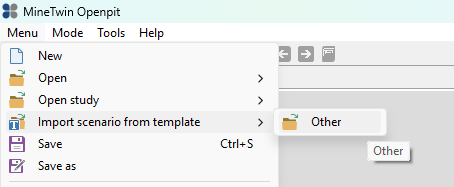
-
Save the scenario to a convenient location so it can be easily reloaded later.
-
Click your custom import data button and select any .xlsx file.
A pop-up should appear with blank statements.
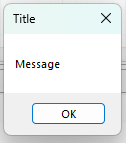
The Eclipse Console should also show:
Identifier : New Scenario MineTwin OpenPit 0
data records count : 0
This proves our Handler can see the file and execute the Command, even though we haven’t parsed the records yet.
2. Reading Data with ExcelFile
Now, we replace the List.of() test code in the handler with the actual logic to read the Excel file.
Update your Handler execution block to use the ExcelFile utility inside a try-with-resources block.
try (ExcelFile excelFile = new ExcelFile(selectedPath)) {
    List<Object> issues = new ArrayList<>();    // list for collecting errors

    // Parse Excel data into a List of BlockData records
    List<BlockData> dataRecords = excelFile.readRecords("BlockData", 2, BlockData.class)
                                           .peekValue(issues::addAll)
                                           .orElse(List.of());

    // Create command and pass parsed records to it
    ImportCustomDataCommand command = new ImportCustomDataCommand(currentScenario, redrawRestrictionManager);
    command.importCustomData(dataRecords);

    // Execute command via the CommandStack
    CommandsManager.getEditingDomain().getCommandStack().execute(command);

    MessageBoxFactory.createMessageBox(shell, SWT.OK, "Success", "Data imported successfully.");
} catch (Exception e) {
    MessageBoxFactory.createMessageBox(shell, SWT.ERROR, "Import Error", "Failed to load data.");
}|
Remember to import
|
2.1. Understanding the Implementation
Let’s break down exactly what is happening in this execution block:
-
The
try-with-resourcesBlock: Notice how we declareExcelFile excelFile = new ExcelFile(selectedPath)inside the parentheses of thetrystatement. This is a modern Java feature called try-with-resources. It guarantees that the Excel file is automatically closed as soon as the block finishes executing, preventing memory leaks or file locks, even if an error occurs. -
Parsing the Excel File (
readRecords): ThereadRecords("BlockData", 2, BlockData.class)method is doing the heavy lifting of converting rows and columns into Java objects.-
"BlockData"refers to the specific name of the sheet inside the Excel workbook. -
2tells the parser to start reading at row 2, allowing us to safely skip the header row. -
BlockData.classis the target Java Record we want to map the data into.
-
-
Functional Error Handling: The
.peekValue(issues::addAll)line is a functional programming approach to capture any non-fatal parsing issues (like a malformed cell) without crashing the entire application. The.orElse(List.of())ensures that if the parsing fails completely, it returns a safe, empty list rather than throwing aNullPointerException. -
Executing via the Command Stack: We do not just call
command.execute(). By passing our command intoCommandsManager.getEditingDomain().getCommandStack().execute(command), we are registering this data import with MineTwin’s core architecture. This is what magically allows the user to press Ctrl+Z (Undo) to reverse the import if they loaded the wrong file! -
User Feedback (MessageBoxFactory): Finally, we use SWT (Standard Widget Toolkit) dialogs to inform the user whether the operation was a
Successor anERROR, providing immediate visual feedback for the action.