Building the Custom Data Model & Excel Integration
In this section, we will finish the data import. We will define the data structure, connect our application to external Excel files, and inject this data directly into the MineTwin simulation.
|
Starting Point
This section builds on the content from Linking the Handler and Reading an Excel file. |
1. Injecting Data into the Model
The ultimate goal of the import is to turn Excel rows into functional MineTwin objects. We will now update our importCustomData method in the Command class to actually create Mine Areas, Ore Types, and Blocks in the simulation.
Update the importCustomData method in your Command class:
public void importCustomData(List<BlockData> data) {
    System.out.println("Identifier : " + getScenario().getIdentifier());
    System.out.println("data records count : " + data.size());

    for( var r : data ) {
        System.out.println("id : " + r.id() + " arcId : " + r.arcId() + " volume : " + r.volume());

        // 1. Retrieve or Create the Mine Area
        MineArea mineArea = getOrCreateMineArea(r.mineAreaId());

        // 2. Define the Ore Type
        OreType oreType = addOreType("DefaultLabel", "Imported Ore", MiningType.PRODUCTION);

        // 3. Find the matching Arc Layout
        MineArc mineArc = getScenario().getMineArcs().stream()
                                       .filter(arc -> arc.getIdentifier().equals(r.arcId()))
                                       .findFirst()
                                       .orElse(null);

        // 4. Construct the Segment and Block
        if (mineArc != null) {
            MineSegment ms = addMineSegment(r.id(), mineArea, List.of(mineArc));
            // Note: 2.58 (Density) and 1.5 (Fragmentation) are currently Hard-coded!
            Block block = createBlock(r.id(), r.id(), mineArea, ms, oreType, 2.58, 1.5);
        }
    }
}|
Naming Conventions
Notice how we use camelCase (e.g., |
|
A Note on Hardcoding
You will notice the values 2.58 (Density) and 1.5 (Fragmentation) are hard-coded directly into the createBlock call. In professional software development, "hardcoding" means embedding data directly into the source code, which makes it impossible to change without recompiling the program. This is just a temporary measure for this training module—your upcoming exercise will teach you how to replace these with dynamic values read directly from your Excel file.
|
1.1. Understanding the Data Injection Logic
This method is the heart of your data import process. It acts as a bridge between the raw data in your Excel file and the complex structure of the MineTwin simulation.
-
Retrieve or Create (The getOrCreate Pattern): We call getOrCreateMineArea(r.mineAreaId()) to ensure the data has a home. This pattern is defensive programming at its best: if a MineArea with that ID already exists, it retrieves it; if it doesn’t exist, it creates it on the fly. This prevents "missing reference" errors in your simulation.
-
Defining Metadata (OreType): We define the OreType (label, description, and MiningType.PRODUCTION) here. This sets the properties of the material being mined, which the simulation engine will later use to calculate production throughput, costs, and scheduling metrics.
-
Linking to Spatial Layout (Streams and Filters): This is the most critical step for simulation accuracy. We don’t just assign an ID; we search the existing Scenario for a MineArc that matches the arcId imported from your Excel sheet. By using a Java Stream (.stream().filter(…).findFirst()), we ensure that we only attach our new data to a road or path that actually exists in the design. If it doesn’t find a match, it returns null, and the if (mineArc != null) check prevents the simulation from crashing.
-
Constructing Simulation Objects:
-
addMineSegment: This physically attaches our new block to the identified arc layout so it has a location in the 3D space.
-
createBlock: This finally instantiates the 3D block object itself, populating it with the specific attributes required for the simulation to "see" it.
-
|
Debugging Tip: Breakpoints
If the import doesn’t seem to be working, use the Eclipse Debugger! Set a breakpoint on the for loop line, run the application in Debug Mode, and hover over variable r. You can inspect the exact values coming out of your Excel file in real-time to see if they match your expectations.
|
2. Testing the Data Import
Let’s verify that the data actually modifies the scenario visually.
Download CustomData.xlsx, this will be required to test the import.
-
Open the application and load your previously saved scenario.
-
In the Model Explorer, expand the Mine Arcs section. Double-click a road to view the layout.
-
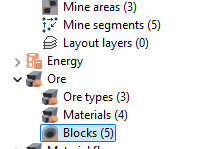
Observe the current state: You should see that your saved scenario starts with exactly 5 Mine Segments and 5 Blocks.
-
Click your Custom Import button and select
CustomData.xlsx. -
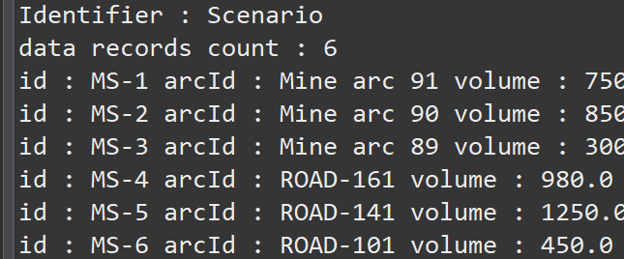
A pop-up with a success message should appear. Also check your Eclipse console to confirm the records were parsed.
-
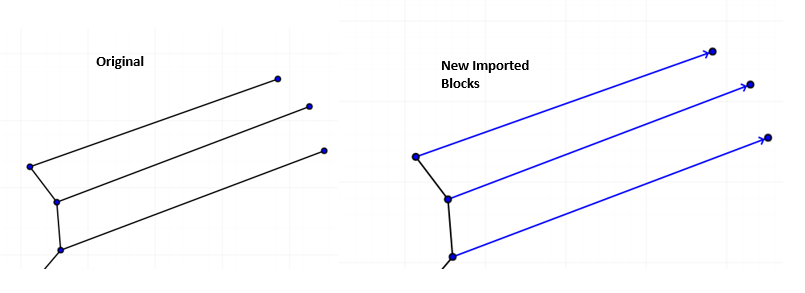
Look back at the Model Explorer. You should now see 11 Mine Segments and 11 Blocks.
-
Double-click on the new mine segments to visually inspect where the new blocks were added to the layout.
✅ Final Code
import java.util.List;
import com.amalgamasimulation.desktop.binding.RedrawRestrictionManager;
import com.amalgamasimulation.minetwin.datamodel.MineArc;
import com.amalgamasimulation.minetwin.datamodel.MineArea;
import com.amalgamasimulation.minetwin.datamodel.MineSegment;
import com.amalgamasimulation.minetwin.datamodel.MiningType;
import com.amalgamasimulation.minetwin.datamodel.OreType;
import com.amalgamasimulation.minetwin.datamodel.Scenario;
import com.amalgamasimulation.minetwin.openpit.datamodel.openpit.Block;
import com.amalgamasimulation.minetwin.openpit.application.commands.OpenPitCompoundCommand;

public class ImportCustomDataCommand extends OpenPitCompoundCommand {

    // Define the structure of our Excel data
    public record BlockData(String id, String arcId, String mineAreaId, Double volume) {}

    // Constructor
    public ImportCustomDataCommand(Scenario scenario, RedrawRestrictionManager redrawRestrictionManager) {
        super(scenario, redrawRestrictionManager);
    }

	public void importCustomData(List<BlockData> data) {
	    System.out.println("Identifier : " + getScenario().getIdentifier());
	    System.out.println("data records count : " + data.size());

	    for( var r : data ) {
	        System.out.println("id : " + r.id() + " arcId : " + r.arcId() + " volume : " + r.volume());

	        // 1. Retrieve or Create the Mine Area
	        MineArea mineArea = getOrCreateMineArea(r.mineAreaId());

	        // 2. Define the Ore Type
	        OreType oreType = addOreType("DefaultLabel", "Imported Ore", MiningType.PRODUCTION);

	        // 3. Find the matching Arc Layout
	        MineArc mineArc = getScenario().getMineArcs().stream()
	                                       .filter(arc -> arc.getIdentifier().equals(r.arcId()))
	                                       .findFirst()
	                                       .orElse(null);

	        // 4. Construct the Segment and Block
	        if (mineArc != null) {
	            MineSegment ms = addMineSegment(r.id(), mineArea, List.of(mineArc));
	            // Note: 2.58 (Density) and 1.5 (Fragmentation) are currently Hard-coded!
	            Block block = createBlock(r.id(), r.id(), mineArea, ms, oreType, 2.58, 1.5);
	        }
	    }
	}
}package com.~.application.handlers;
import java.util.List;
import org.eclipse.e4.core.di.annotations.CanExecute;
import org.eclipse.e4.core.di.annotations.Execute;
import org.eclipse.swt.SWT;
import org.eclipse.swt.widgets.Shell;
import com.amalgamasimulation.desktop.binding.RedrawRestrictionManager;
import com.amalgamasimulation.desktop.commands.CommandsManager;
import com.amalgamasimulation.desktop.ui.dialogs.MessageBoxFactory;
import com.amalgamasimulation.minetwin.openpit.datamodel.openpit.OpenpitScenario;
import com.~.application.commands.ImportCustomDataCommand;
import com.~.application.AppData;
import com.eyftraining.application.commands.ImportCustomDataCommand.BlockData;
public class ImportCustomDataHandler {
@Execute
public void execute(Shell shell, AppData appData, RedrawRestrictionManager redrawRestrictionManager) {
try (ExcelFile excelFile = new ExcelFile(selectedPath)) {
List<Object> issues = new ArrayList<>(); // list for collecting errors
// Parse Excel data into a List of BlockData records
List<BlockData> dataRecords = excelFile.readRecords("BlockData", 2, BlockData.class)
.peekValue(issues::addAll)
.orElse(List.of());
// Create command and pass parsed records to it
ImportCustomDataCommand command = new ImportCustomDataCommand(currentScenario, redrawRestrictionManager);
command.importCustomData(dataRecords);
// Execute command via the CommandStack
CommandsManager.getEditingDomain().getCommandStack().execute(command);
MessageBoxFactory.createMessageBox(shell, SWT.OK, "Success", "Data imported successfully.");
} catch (Exception e) {
MessageBoxFactory.createMessageBox(shell, SWT.ERROR, "Import Error", "Failed to load data.");
}
}
@CanExecute
public boolean canExecute(AppData appData) {
// Only allow execution if a scenario is actually loaded
return appData != null && appData.getScenario() != null;
}
}3. Exercise: Updating the Data Import
In the code above, the Density (2.58) and Fragmentation (1.5) values are hard-coded. Hard-coding prevents the application from adapting to real-world datasets.
Your task is to replace these hard-coded values with dynamic values imported directly from the Excel sheet.
3.1. Instructions:
-
Update the Excel File: Open
CustomData.xlsxand add two new columns: one fordensityand one forfragmentation. -
Update the Record: Add the two new
Doubleparameters to theBlockDatarecord initialization in your Command class. -
Update the Print Line: Modify the
System.out.printlncommand to log these two new parameters to the console. -
Remove Hard-coding: Replace the
2.58and1.5in thecreateBlock()method with calls to your new parameters (e.g.,r.density()). -
Test: Run the application, import the updated Excel file, check the console output, and verify the blocks have accepted the new properties.
💡 Completed Code and File for Exercise
Updated excel file.
import java.util.List;
import com.amalgamasimulation.desktop.binding.RedrawRestrictionManager;
import com.amalgamasimulation.minetwin.datamodel.MineArc;
import com.amalgamasimulation.minetwin.datamodel.MineArea;
import com.amalgamasimulation.minetwin.datamodel.MineSegment;
import com.amalgamasimulation.minetwin.datamodel.MiningType;
import com.amalgamasimulation.minetwin.datamodel.OreType;
import com.amalgamasimulation.minetwin.datamodel.Scenario;
import com.amalgamasimulation.minetwin.openpit.datamodel.openpit.Block;
import com.amalgamasimulation.minetwin.openpit.application.commands.OpenPitCompoundCommand;

public class ImportCustomDataCommand extends OpenPitCompoundCommand {

    // Define the structure of our Excel data
    public record BlockData(String id, String arcId, String mineAreaId, double volume, double density, double fragmentationRate) {}

    // Constructor
    public ImportCustomDataCommand(Scenario scenario, RedrawRestrictionManager redrawRestrictionManager) {
        super(scenario, redrawRestrictionManager);
    }

	public void importCustomData(List<BlockData> data) {
	    System.out.println("Identifier : " + getScenario().getIdentifier());
	    System.out.println("data records count : " + data.size());

	    for( var r : data ) {
	        System.out.println("id : " + r.id() + " arcId : " + r.arcId() + " volume : " + r.volume() + " density : " + r.density() + " fragmentationRate : " + r.fragmentationRate());

	        // 1. Retrieve or Create the Mine Area
	        MineArea mineArea = getOrCreateMineArea(r.mineAreaId());

	        // 2. Define the Ore Type
	        OreType oreType = addOreType("DefaultLabel", "Imported Ore", MiningType.PRODUCTION);

	        // 3. Find the matching Arc Layout
	        MineArc mineArc = getScenario().getMineArcs().stream()
	                                       .filter(arc -> arc.getIdentifier().equals(r.arcId()))
	                                       .findFirst()
	                                       .orElse(null);

	        // 4. Construct the Segment and Block
	        if (mineArc != null) {
	            MineSegment ms = addMineSegment(r.id(), mineArea, List.of(mineArc));
	            // Note: 2.58 (Density) and 1.5 (Fragmentation) are currently Hard-coded!
	            Block block = createBlock(r.id(), r.id(), mineArea, ms, oreType, r.density(), r.fragmentationRate());
	        }
	    }
	}
}