Getting started
Download
To download the MineTwin desktop application, head to the downloads page and fill in your details. You will then receive a download link via email. Both Windows and macOS versions are available.
Install and Launch
Windows
To install the Windows version (shipped as a zip archive), unzip the downloaded zip file.
Launch the Windows application by running MineTwin OpenPit.exe.
If you have enabled display scaling above 150% and are experiencing performance issues in the 2D Editor, please refer to our article on graphical editor performance for specific troubleshooting steps and configuration advice.
MineTwin license
Upon launching the application for the first time, you will be prompted with a license request dialog.
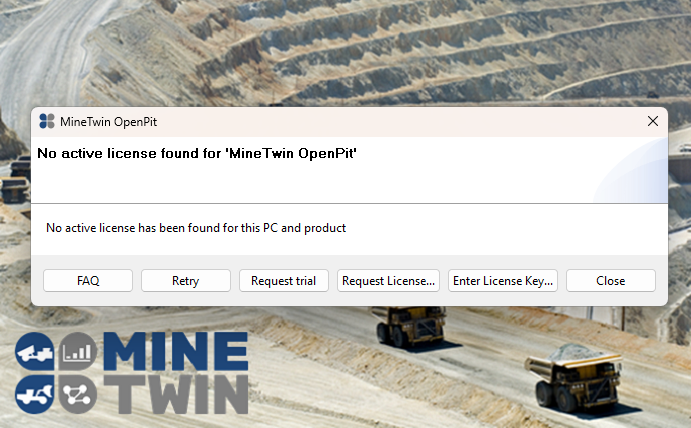
To begin your 30-day trial:
-
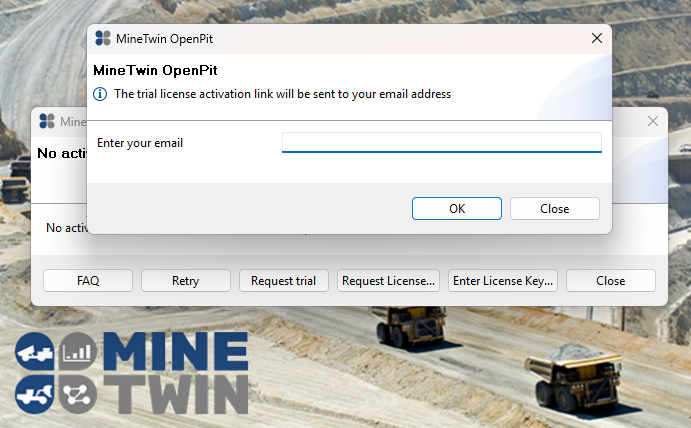
Click the 'Request Trial' button. Email dialog opens:
-
Enter a valid email address and press OK.
-
Check your email and click the provided activation link.
-
Return to the application and click 'Retry', or simply restart the program.
Note: If the activation link expires before use, repeat the process by clicking 'Request Trial' once more.
Once the trial period ends, the application will no longer operate. For continued access, please contact the development team at info@amalgamasimulation.com to purchase a permanent license or inquire about extending your trial.
User guide
You can download the latest MineTwin OpenPit user guide from the official MineTwin site: https://downloads.mine-twin.com/minetwin-openpit-en-latest.pdf