Define equipment types
In this section, we will use the scenario we created in the previous step. Make sure you have this scenario open in MineTwin before continuing. This scenario has basic master data and a layout, which we imported from an external file. In this scenario, we will import the minimal necessary set of equipment types from MineTwin’s built-in library.
1. Determine what equipment types to add to the scenario
In this tutorial, we will be simulating simple drill-and-blast mining operations. Such operations will consist of the 4 stages that are performed cyclically:
-
Drilling the blast holes, performed by drills, or drilling machines
-
Charging the blast holes with the explosives, performed by chargers
-
Blasting that occurs simultaneously in the entire mine and does not require any equipment
-
Hauling of the ore from blocks to dump areas performed by excavators, or loaders, and trucks
MineTwin allows us to define all these 4 equipment types, but in our scenario, there are no types defined so far:

2. Import equipment types from MineTwin library
MineTwin has a built-in library of equipment types. This library is being constantly extended as we get more data about the equipment models used in the mines worldwide.
Equipment type in MineTwin typically corresponds to some particular model of equipment. However, it does not have to be this way. For example, old trucks and new trucks of the same model can belong to different types with different characteristics like speed and availability.
In this tutorial, we will import 1 type of each equipment.
To import a truck type, right-click on the Truck types tree item and click Import from library in the pop-up menu.

You can also import truck types by clicking the Library button in the truck types list:
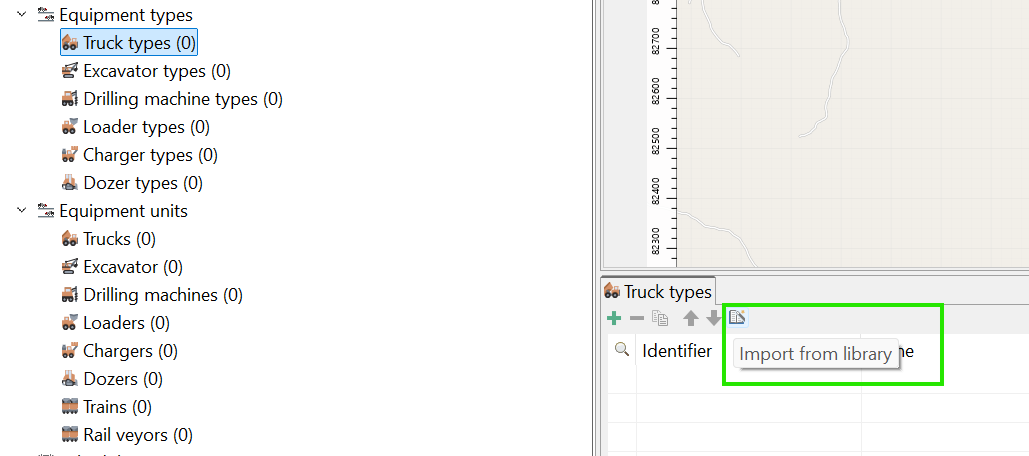
The library opens in a pop-up window with the list of truck types. Let us only select the Caterpillar 772 G model from the list:
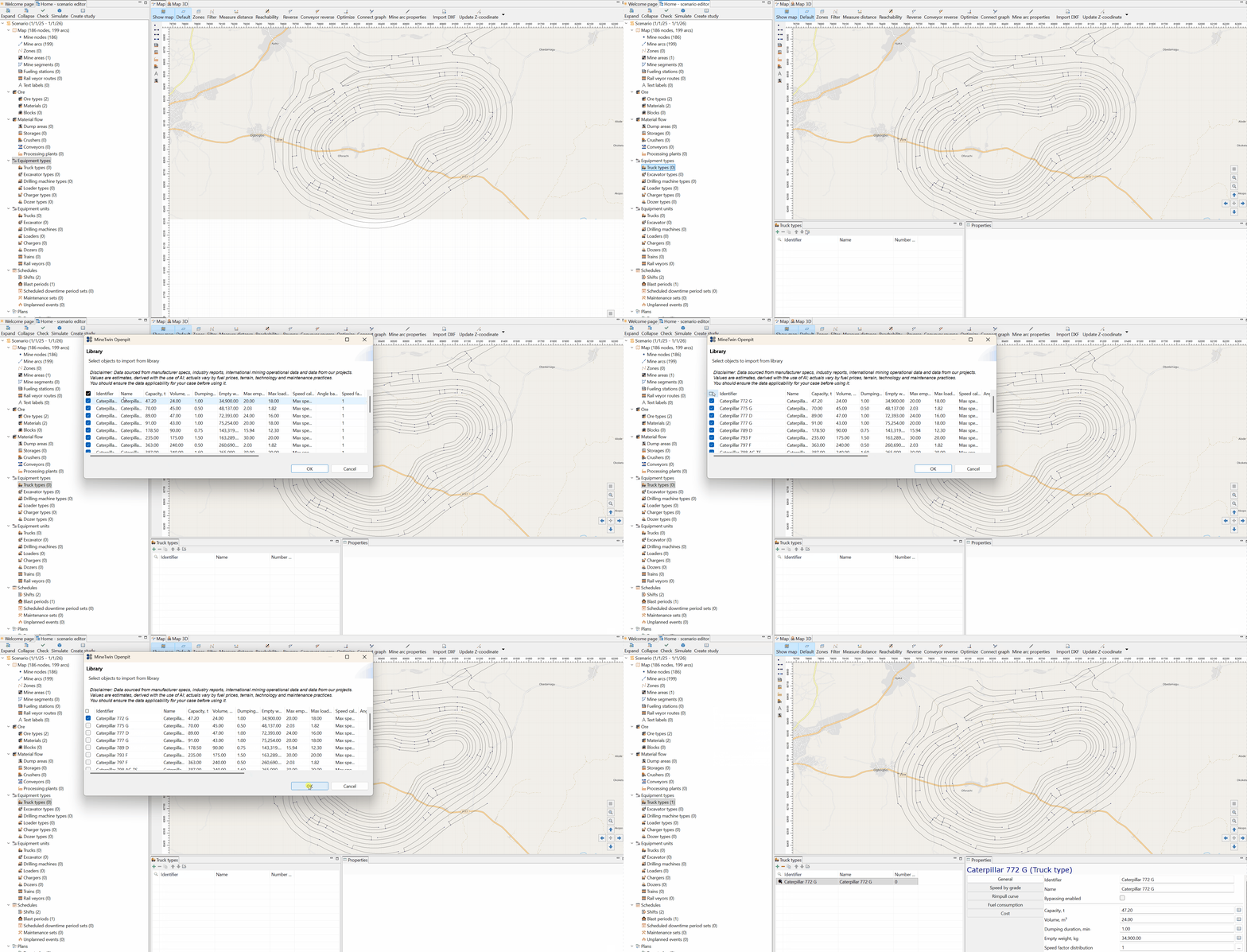
After clicking OK, we can see how the truck type has been imported into our scenario:

Let us review the main characteristics of this truck type. To do so, double-click the Properties tab to expand the properties window. The full list of main properties of Caterpillar 772 G truck looks like this:

Note that the specific characteristics of the truck type can significantly differ from those of the same trucks in some specific mines. This can happen due to various reasons like pavement conditions, safety rules, equipment age, etc. In real mining simulation projects, all equipment types' characteristics always need checking and validation. However, for our training purposes, these typical properties of equipment types are sufficient.
Now that we have reviewed the truck type characteristics, we can double-click on the Properties tab again to return it to its original size.
Similar to the truck type, let us import one model for each of the remaining 3 equipment types:
-
Hitachi EX3600 excavator type
-
Sandvik DC125i charger type
-
Sandvik D25KS drilling machine type
After importing these equipment types from the library, your scenario tree will look as shown below:
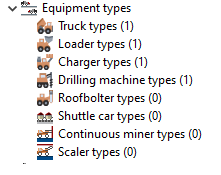
3. Adjust the equipment type parameters with site-specific data
The built-in library contains the typical costs and performance characteristics for the respective equipment type. However, in real life, these characteristics can vary significantly. In every real mining simulation project, all key characteristics require verification, adjustment and validation.
MineTwin allows users to change the characteristics of equipment types regardless of whether they were imported from the built-in library or entered manually. Note that the changes made after importing the scenario are not propagated back to the built-in library.
In this tutorial, we will change the characteristics of the Sandvik D25KS drilling machine type. Specifically, we will change its Setup time per drill, min and movement speed.
To change the Setup time per drill, min of Sandvik D25KS drilling machine type, do the following steps:
-
Select the Drilling machine types item in the scenario tree
-
Click … button to the right of Setup time per drill, min parameter in the Properties tab
-
In the opened distribution dialog, click Triangular
-
Set Min = 2, Likely = 4, and Max = 8
-
Click OK button to apply the change
The image below demonstrates this sequence of actions:

Changing the movement speed of the charger type is even easier. Let us simply change the Speed parameter to 5 km/h in the properties view. The adjusted characteristics of the Sandvik D25KS charger type will look like this:

So, we have determined the equipment types required for our future simulation and defined what the characteristics of these types should be. Now, we can click the Save menu button or hit Ctrl+S to save our intermediate results. You can always download the scenario file that we got so far and continue working with this tutorial later.