Git & GitLab Workflow: Issues and Kanban Board
This guide establishes the standard development practices for tracking work and collaborating within the MineTwin codebase. Proper version control is the backbone of our development process, ensuring code stability and team coordination.
1. Creating an Issue
Effective issue tracking is fundamental to successful software development. GitLab Issues serve as a powerful tool for planning, tracking, and managing tasks, bugs, feature requests, and overall project progress. By clearly defining and organizing issues, teams can collaborate more efficiently, prioritize work, and ensure that all necessary tasks are addressed. This section will guide you through the process of creating well-structured issues in GitLab.
1.1. Gitlab Homepage
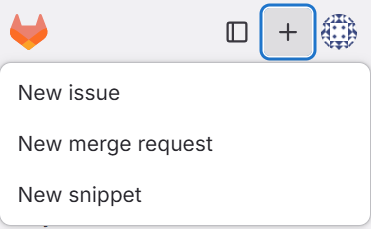
To begin creating a new issue, navigate to your project’s homepage on GitLab. In the top navigation bar, locate the + (plus) sign icon. This icon is a quick access point for creating new items within GitLab. Click on it, and from the dropdown menu, select New Issue.
1.2. New Issue
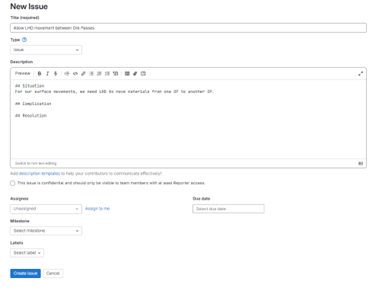
When creating a new issue, it is highly recommended to structure your description using the Situation, Complication, Resolution (SCR) framework. This approach ensures clarity, provides necessary context, and guides effective problem-solving. The issue description should clearly outline:
-
Situation: Describe the current state or background. What is the context in which this issue arises? What is the normal behavior or expectation?
-
Complication: Explain the problem, challenge, or deviation from the expected. What is going wrong, or what is the new requirement that complicates the current situation? Provide enough detail for someone unfamiliar with the issue to understand the core problem.
-
Resolution: Propose a desired outcome or a suggested solution. What do you want to achieve by addressing this issue? If you have a specific fix in mind, describe it here. This helps the assignee understand the goal and assess whether the proposed resolution is feasible or if an alternative approach might be better.
By adhering to the SCR framework, you provide a comprehensive overview that helps assignees quickly grasp the issue, assess its impact, and determine the most effective path forward.
1.3. Select Assignees, Labels, and Due Dates
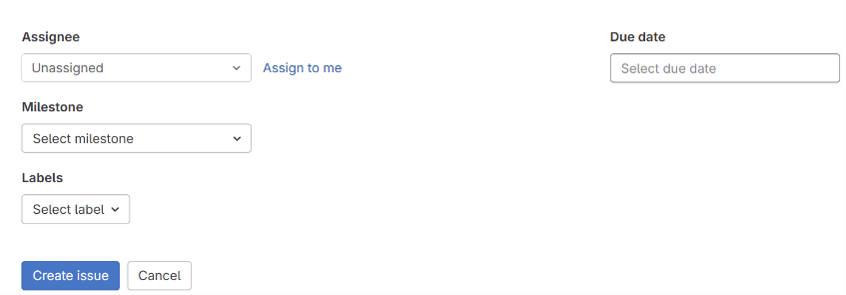
After detailing the issue, the next crucial step is to properly categorize and assign it. This ensures accountability, facilitates workflow management, and helps in prioritizing tasks.
-
Assignee: In the
New Issuewindow, use theAssigneedropdown menu to assign the issue to the appropriate team member. Always assign an issue to yourself before starting work. This prevents two developers from working on the same feature simultaneously. If you are unsure who should own a task, default to the Project Manager (e.g., Marina). -
Labels: Below the assignee section, you will find the
Labelsfield. Use them to specify the Type of problem (e.g.,bug,feature), Impact or Priority (e.g.,critical,high), and Workflow stage (e.g.,to-do,in-progress). -
Due date: Set realistic due dates to help project managers track milestones and ensure timely sprint deliveries.
|
Effective use of labels helps in prioritizing and organizing issues, making it easier to track progress on boards and generate reports. After setting the assignee, labels, and due date, click on |
2. The Kanban Board and Issue Organization
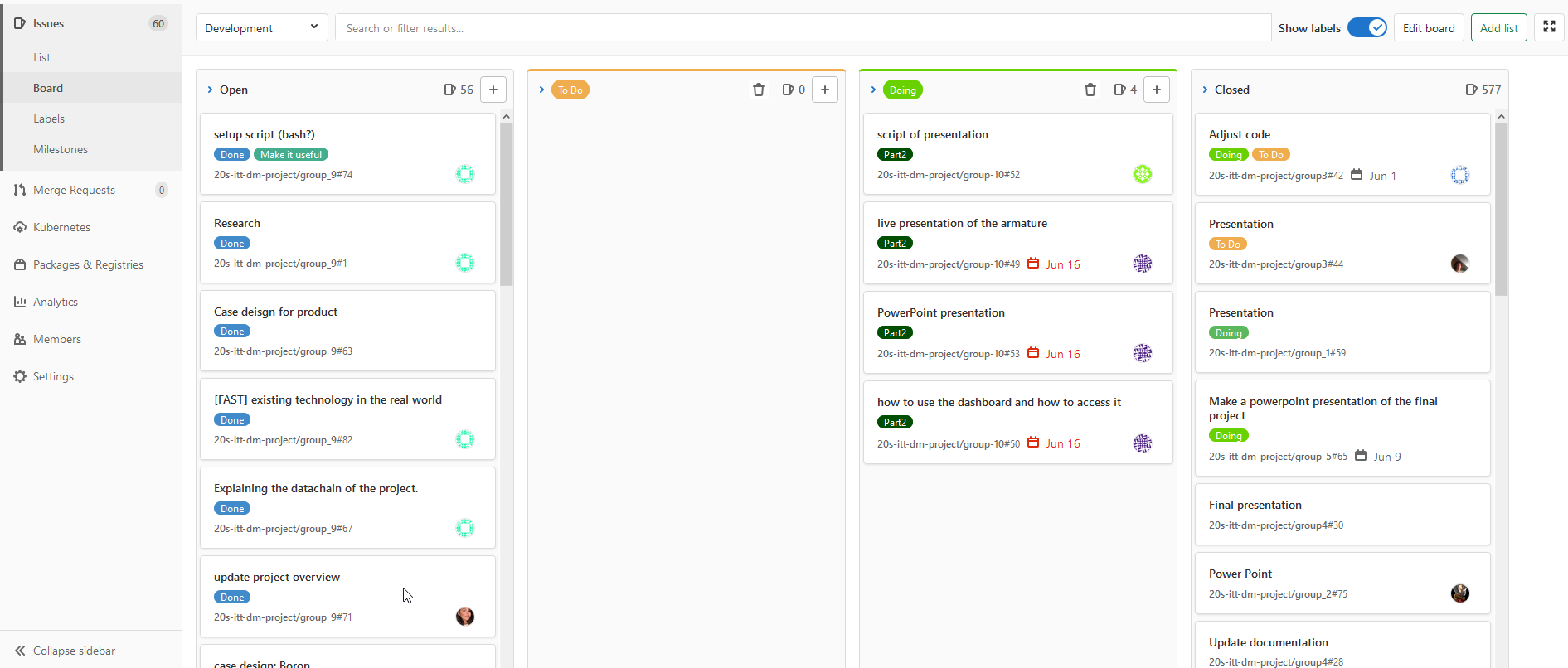
The Kanban board is our visual workflow management method. It is designed to optimize efficiency, limit work-in-progress, and provide visibility. Effective project management relies on actively organizing and filtering this board.
-
Creating Lanes: As your project grows, you can create new lanes to represent specific states (e.g., "Code Review," "QA Testing," "Blocked").
-
Filtering by Labels: Because every issue must have labels for Type, Priority, and Status, you can use these labels as open-ended filters to isolate your specific areas of focus on the board.